Building a Full-Stack AI Chatbot with Next.js and NeuroLink
Build a production AI chatbot with Next.js and NeuroLink. Streaming API routes, React chat UI, tool calling, and conversation memory.
In this guide, you will build a full-stack AI chatbot with Next.js and NeuroLink. You will create the backend API routes, implement streaming responses to the React frontend, add conversation memory, and deploy a production-ready chatbot that supports multiple AI providers.
This tutorial walks through building a complete, production-ready AI chatbot with Next.js and NeuroLink SDK. By the end, you will have:
- A streaming API route that sends tokens as Server-Sent Events
- A React chat interface with real-time text display
- Tool calling for dynamic actions (weather lookups, knowledge base search)
- Conversation memory that persists across page reloads
- Provider switching so users can choose their preferred AI model
The stack is Next.js 14+ App Router, NeuroLink SDK on the backend, and React on the frontend.
Architecture Overview
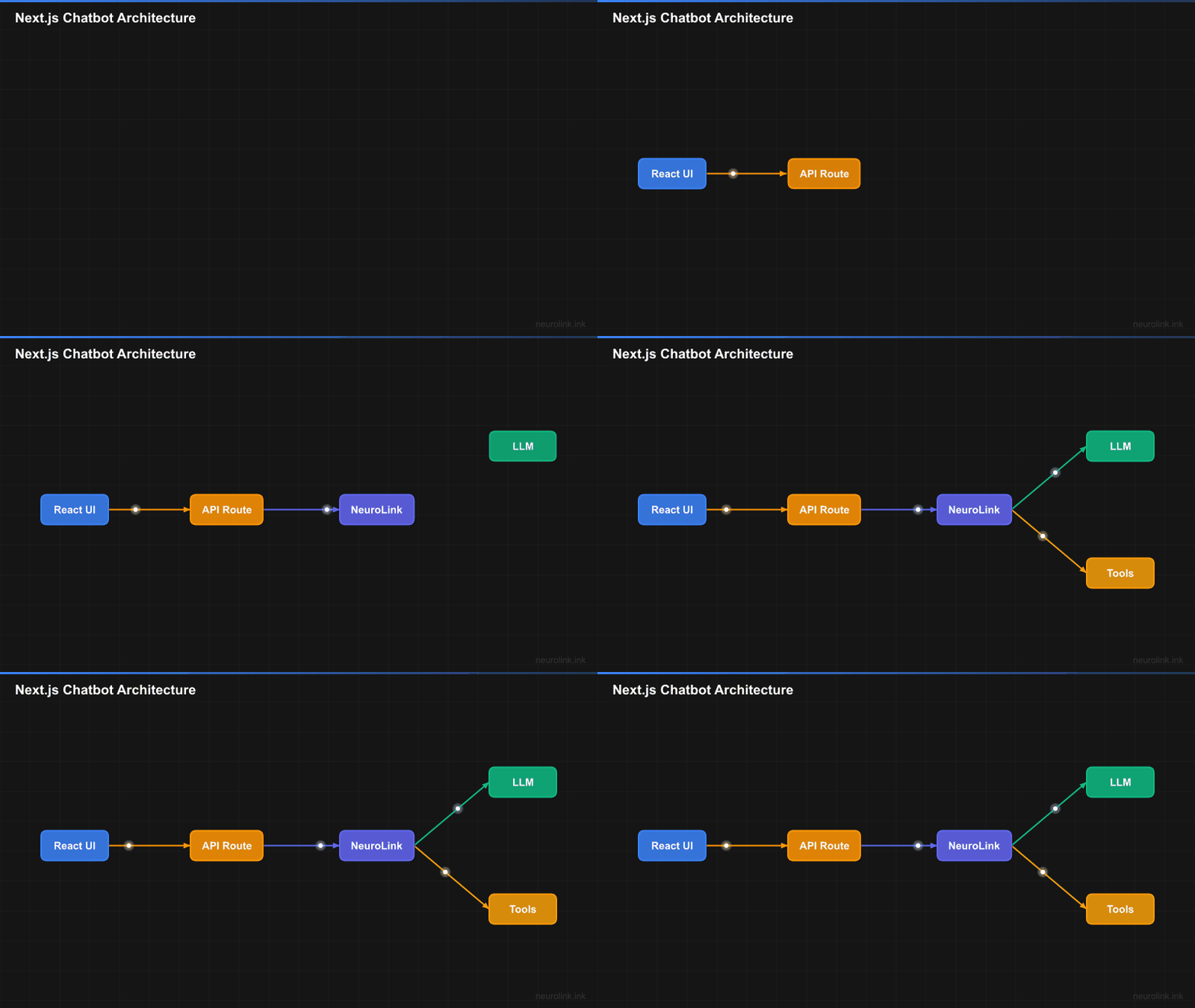
The chatbot follows a standard client-server architecture with streaming at every layer.
flowchart LR
    A[React Chat UI] -->|SSE Stream| B["Next.js API Route
    /api/chat"]
    B --> C[NeuroLink SDK]
    C --> D{Provider Router}
    D --> E[OpenAI]
    D --> F[Anthropic]
    D --> G[Google AI]
    C --> H[Tool Execution]
    C --> I[Conversation Memory]
    I --> J[Redis/In-Memory]
The React frontend sends user messages to a Next.js API route. The API route uses NeuroLink to stream AI responses back as SSE events. The frontend parses these events and updates the chat UI token by token.
Step 1: Project Setup
Create a new Next.js project with TypeScript and Tailwind CSS.
1
2
3
npx create-next-app@latest ai-chatbot --typescript --tailwind --app
cd ai-chatbot
npm install @juspay/neurolink ai
Set up your environment variables:
1
2
3
OPENAI_API_KEY=sk-...
# Optional: enable conversation memory with Redis
REDIS_URL=redis://localhost:6379
Note: You can use any NeuroLink-supported provider. Replace
OPENAI_API_KEYwith your preferred provider’s key. NeuroLink supports 13 providers including Anthropic, Google AI, Vertex, Bedrock, and more.
Step 2: Create the Backend API Route
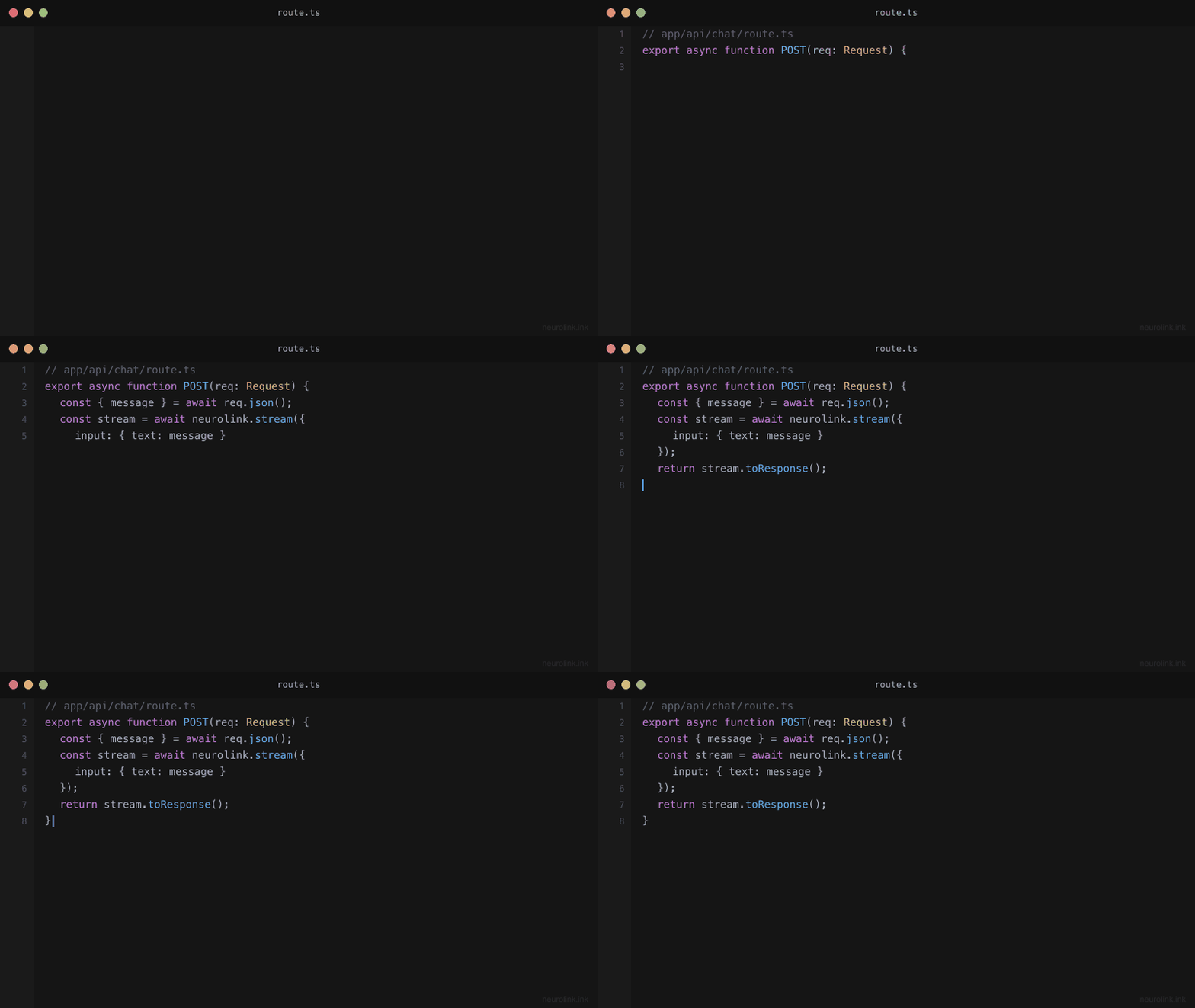
The API route creates a NeuroLink instance with conversation memory, calls the stream() method, and sends chunks back as SSE events.
1
2
3
4
5
6
7
8
9
10
11
12
13
14
15
16
17
18
19
20
21
22
23
24
25
26
27
28
29
30
31
32
33
34
35
36
37
38
39
40
41
42
43
44
45
46
47
// app/api/chat/route.ts
import { NeuroLink } from "@juspay/neurolink";

const neurolink = new NeuroLink({
  conversationMemory: {
    enabled: true,
  },
});

export async function POST(request: Request) {
  const { message } = await request.json();

  const result = await neurolink.stream({
    input: { text: message },
    provider: "openai",
    model: "gpt-4o",
    temperature: 0.7,
    maxTokens: 2000,
  });

  // Create a ReadableStream for SSE
  const encoder = new TextEncoder();
  const stream = new ReadableStream({
    async start(controller) {
      try {
        for await (const chunk of result.stream) {
          if ("content" in chunk) {
            const data = JSON.stringify({ type: "text", content: chunk.content });
            controller.enqueue(encoder.encode(`data: ${data}\n\n`));
          }
        }
        controller.enqueue(encoder.encode("data: [DONE]\n\n"));
        controller.close();
      } catch (error) {
        controller.error(error);
      }
    },
  });

  return new Response(stream, {
    headers: {
      "Content-Type": "text/event-stream",
      "Cache-Control": "no-cache",
      Connection: "keep-alive",
    },
  });
}
How it works
- NeuroLink instance is created once at module scope with conversation memory enabled. This persists across requests.
neurolink.stream()returns aStreamResultwith astreamproperty – an async iterable ofStreamChunkobjects.- Each chunk has a
typefield. Text chunks (type: "text") contain the generated content. Audio chunks exist for TTS scenarios. - SSE format requires each event to be
data: <payload>\n\n. The[DONE]sentinel signals stream completion. - Response headers set the content type to
text/event-streamand disable caching to prevent proxy buffering.
Step 3: Add Tool Calling
Tools let the chatbot take actions beyond generating text. Define tools with the tool() helper from the AI SDK and Zod for parameter validation.
1
2
3
4
5
6
7
8
9
10
11
12
13
14
15
16
17
18
19
20
21
22
23
24
25
26
27
28
29
// app/api/chat/tools.ts
import { tool } from "ai";
import { z } from "zod";

export const chatTools = {
  getWeather: tool({
    description: "Get current weather for a location",
    parameters: z.object({
      city: z.string().describe("City name"),
    }),
    execute: async ({ city }) => {
      const response = await fetch(
        `https://api.weather.example.com/current?city=${city}`
      );
      return response.json();
    },
  }),

  searchKnowledgeBase: tool({
    description: "Search the knowledge base for product information",
    parameters: z.object({
      query: z.string().describe("Search query"),
    }),
    execute: async ({ query }) => {
      // Integrate with your RAG pipeline
      return { results: [`Result for: ${query}`] };
    },
  }),
};
Update the API route to include tools:
1
2
3
4
5
6
7
8
9
10
11
// Update app/api/chat/route.ts
import { chatTools } from "./tools";

const result = await neurolink.stream({
  input: { text: message },
  provider: "openai",
  model: "gpt-4o",
  tools: chatTools,
  temperature: 0.7,
  maxTokens: 2000,
});
When the model decides to call a tool, NeuroLink executes it automatically and feeds the result back to the model. The model then generates a natural language response that incorporates the tool result. From the frontend’s perspective, the experience is seamless – tokens stream in just as they would without tools.
Step 4: Build the React Chat UI
The chat interface is a client component that manages message state, sends messages to the API, and parses the SSE stream.
1
2
3
4
5
6
7
8
9
10
11
12
13
14
15
16
17
18
19
20
21
22
23
24
25
26
27
28
29
30
31
32
33
34
35
36
37
38
39
40
41
42
43
44
45
46
47
48
49
50
51
52
53
54
55
56
57
58
59
60
61
62
63
64
65
66
67
68
69
70
71
72
73
74
75
76
77
78
79
80
81
82
83
84
85
86
87
88
89
90
91
92
93
94
95
96
97
98
99
100
101
102
103
104
105
106
107
108
109
110
111
112
113
114
115
116
// app/components/ChatInterface.tsx
"use client";
import { useState, useRef, useEffect } from "react";

type Message = {
  role: "user" | "assistant";
  content: string;
};

export default function ChatInterface() {
  const [messages, setMessages] = useState<Message[]>([]);
  const [input, setInput] = useState("");
  const [isStreaming, setIsStreaming] = useState(false);
  const messagesEndRef = useRef<HTMLDivElement>(null);

  // Auto-scroll to bottom when new messages arrive
  useEffect(() => {
    messagesEndRef.current?.scrollIntoView({ behavior: "smooth" });
  }, [messages]);

  async function handleSubmit(e: React.FormEvent) {
    e.preventDefault();
    if (!input.trim() || isStreaming) return;

    const userMessage = input.trim();
    setInput("");
    setMessages((prev) => [...prev, { role: "user", content: userMessage }]);
    setIsStreaming(true);

    // Add empty assistant message for streaming
    setMessages((prev) => [...prev, { role: "assistant", content: "" }]);

    try {
      const response = await fetch("/api/chat", {
        method: "POST",
        headers: { "Content-Type": "application/json" },
        body: JSON.stringify({
          message: userMessage,
        }),
      });

      const reader = response.body!.getReader();
      const decoder = new TextDecoder();
      let buffer = '';

      while (true) {
        const { done, value } = await reader.read();
        if (done) break;

        buffer += decoder.decode(value, { stream: true });
        const parts = buffer.split("\n\n");
        buffer = parts.pop() || ''; // Keep incomplete chunk in buffer

        for (const part of parts) {
          const line = part.trim();
          if (line.startsWith("data: ") && line !== "data: [DONE]") {
            const data = JSON.parse(line.slice(6));
            if (data.type === "text") {
              setMessages((prev) => {
                const updated = [...prev];
                const last = updated[updated.length - 1];
                last.content += data.content;
                return updated;
              });
            }
          }
        }
      }
    } catch (error) {
      console.error("Chat error:", error);
    } finally {
      setIsStreaming(false);
    }
  }

  return (
    <div className="flex flex-col h-screen max-w-2xl mx-auto">
      <div className="flex-1 overflow-y-auto p-4 space-y-4">
        {messages.map((msg, i) => (
          <div
            key={i}
            className={`p-3 rounded-lg ${
              msg.role === "user"
                ? "bg-blue-100 ml-auto max-w-[80%]"
                : "bg-gray-100 mr-auto max-w-[80%]"
            }`}
          >
            {msg.content}
            {msg.role === "assistant" && isStreaming && i === messages.length - 1 && (
              <span className="animate-pulse">|</span>
            )}
          </div>
        ))}
        <div ref={messagesEndRef} />
      </div>
      <form onSubmit={handleSubmit} className="p-4 border-t">
        <div className="flex gap-2">
          <input
            value={input}
            onChange={(e) => setInput(e.target.value)}
            placeholder="Type a message..."
            className="flex-1 p-2 border rounded"
            disabled={isStreaming}
          />
          <button
            type="submit"
            disabled={isStreaming}
            className="px-4 py-2 bg-blue-500 text-white rounded disabled:opacity-50"
          >
            Send
          </button>
        </div>
      </form>
    </div>
  );
}
How the SSE parsing works
fetch()returns a response with a readable body streamgetReader()gives us aReadableStreamDefaultReaderfor reading chunksdecoder.decode(value)converts binary chunks to text- Line parsing splits the text by newlines and looks for
data:prefixed lines - JSON parsing extracts the content from each SSE event
- State update appends the content to the last assistant message, creating the typing effect
Step 5: Add Conversation Memory
Persist conversation history across page reloads so users can continue conversations where they left off.
1
2
3
4
5
6
7
8
9
10
11
12
13
14
const neurolink = new NeuroLink({
  conversationMemory: {
    enabled: true,
    redis: {
      url: process.env.REDIS_URL || "redis://localhost:6379",
    },
  },
});

// Conversation history is automatically maintained when conversationMemory is enabled
const result = await neurolink.stream({
  input: { text: "What did I ask you earlier?" },
  provider: "openai",
});
With conversation memory enabled:
- Each conversation session is stored in Redis (or in-memory if no Redis is configured)
- The AI automatically receives previous messages as context
- Long conversations are automatically summarized to stay within the model’s context window
- Session IDs can be tied to user accounts for multi-user support
Note: In-memory conversation storage works for development but is lost on server restart. Use Redis for production deployments where conversation persistence matters.
Step 6: Provider Switching in the UI
Let users choose their preferred AI provider and model from the chat interface.
1
2
3
4
5
6
7
8
9
10
11
// app/api/chat/route.ts - accept provider from client
const { message, provider, model } = await request.json();

const result = await neurolink.stream({
  input: { text: message },
  provider: provider || "openai",
  model: model || "gpt-4o",
  tools: chatTools,
  temperature: 0.7,
  maxTokens: 2000,
});
On the frontend, add a provider selector:
1
2
3
4
5
6
7
8
9
10
11
12
13
14
15
16
const providers = [
  { value: "openai", label: "OpenAI GPT-4o", model: "gpt-4o" },
  { value: "anthropic", label: "Claude Sonnet", model: "claude-sonnet-4-5-20250929" },
  { value: "google-ai", label: "Gemini Pro", model: "gemini-2.5-pro" },
];

// In the form, add a select dropdown
<select
  value={selectedProvider}
  onChange={(e) => setSelectedProvider(e.target.value)}
  className="p-2 border rounded"
>
  {providers.map((p) => (
    <option key={p.value} value={p.value}>{p.label}</option>
  ))}
</select>
NeuroLink’s EnhancedGenerateResult normalizes responses across providers, so the frontend does not need to handle provider-specific response formats. The chat UI works identically regardless of which provider is selected.
Step 7: Deploy to Production
Environment variables
Set API keys in your deployment platform (Vercel, Railway, Docker):
1
2
3
4
5
6
7
8
9
# Required
OPENAI_API_KEY=sk-...

# Optional: additional providers
ANTHROPIC_API_KEY=sk-ant-...
GOOGLE_API_KEY=AIza...

# Optional: conversation persistence
REDIS_URL=redis://...
Runtime considerations
NeuroLink works with the Node.js runtime. If using Vercel, set the runtime in your API route:
1
export const runtime = 'nodejs'; // Required for NeuroLink
Rate limiting
For production deployments, add rate limiting to prevent abuse:
1
2
3
4
5
6
7
8
9
10
11
12
13
14
15
16
// Simple in-memory rate limiter
const rateLimitMap = new Map<string, { count: number; resetAt: number }>();

function rateLimit(ip: string, limit = 20, windowMs = 60000): boolean {
  const now = Date.now();
  const entry = rateLimitMap.get(ip);

  if (!entry || now > entry.resetAt) {
    rateLimitMap.set(ip, { count: 1, resetAt: now + windowMs });
    return true;
  }

  if (entry.count >= limit) return false;
  entry.count++;
  return true;
}
Full Application Architecture
The complete chatbot connects frontend, backend, tools, memory, and providers in a single flow.
flowchart TD
    subgraph Frontend
        A[ChatInterface Component]
        B[Message State]
        C[SSE Reader]
    end

    subgraph Backend
        D["POST /api/chat"]
        E[NeuroLink SDK]
        F[Tool Execution]
        G[Conversation Memory]
    end

    subgraph Providers
        H[OpenAI]
        I[Anthropic]
        J[Google AI]
    end

    A --> D
    D --> E
    E --> F
    E --> G
    E --> H
    E --> I
    E --> J
    H --> C
    I --> C
    J --> C
    C --> B
    B --> A
What’s Next
You have completed all the steps in this guide. To continue building on what you have learned:
- Review the code examples and adapt them for your specific use case
- Start with the simplest pattern first and add complexity as your requirements grow
- Monitor performance metrics to validate that each change improves your system
- Consult the NeuroLink documentation for advanced configuration options
Related posts: