Getting Started with NeuroLink: Your First AI App in 5 Minutes
Build your first AI application in under 5 minutes with NeuroLink. Install, configure, and generate AI responses with just a few lines of TypeScript.
You’ve heard about AI SDKs but aren’t sure where to start. Let’s fix that.
Imagine you want to add AI to your app – maybe a chatbot, maybe a smart search feature. You might think you need days of setup, a PhD in machine learning, and three different API accounts. The truth is, you can get a working AI call running in under 5 minutes with NeuroLink. No prior AI experience needed.
NeuroLink (@juspay/neurolink) handles all the complicated provider stuff behind the scenes. You just write a few lines of TypeScript, and it works with any major AI provider – OpenAI, Google, Anthropic, and more.
In this post, you will learn:
- How to install and configure NeuroLink
- How to make your first AI generation call
- How to switch providers with a single line change
- How to add streaming for real-time output
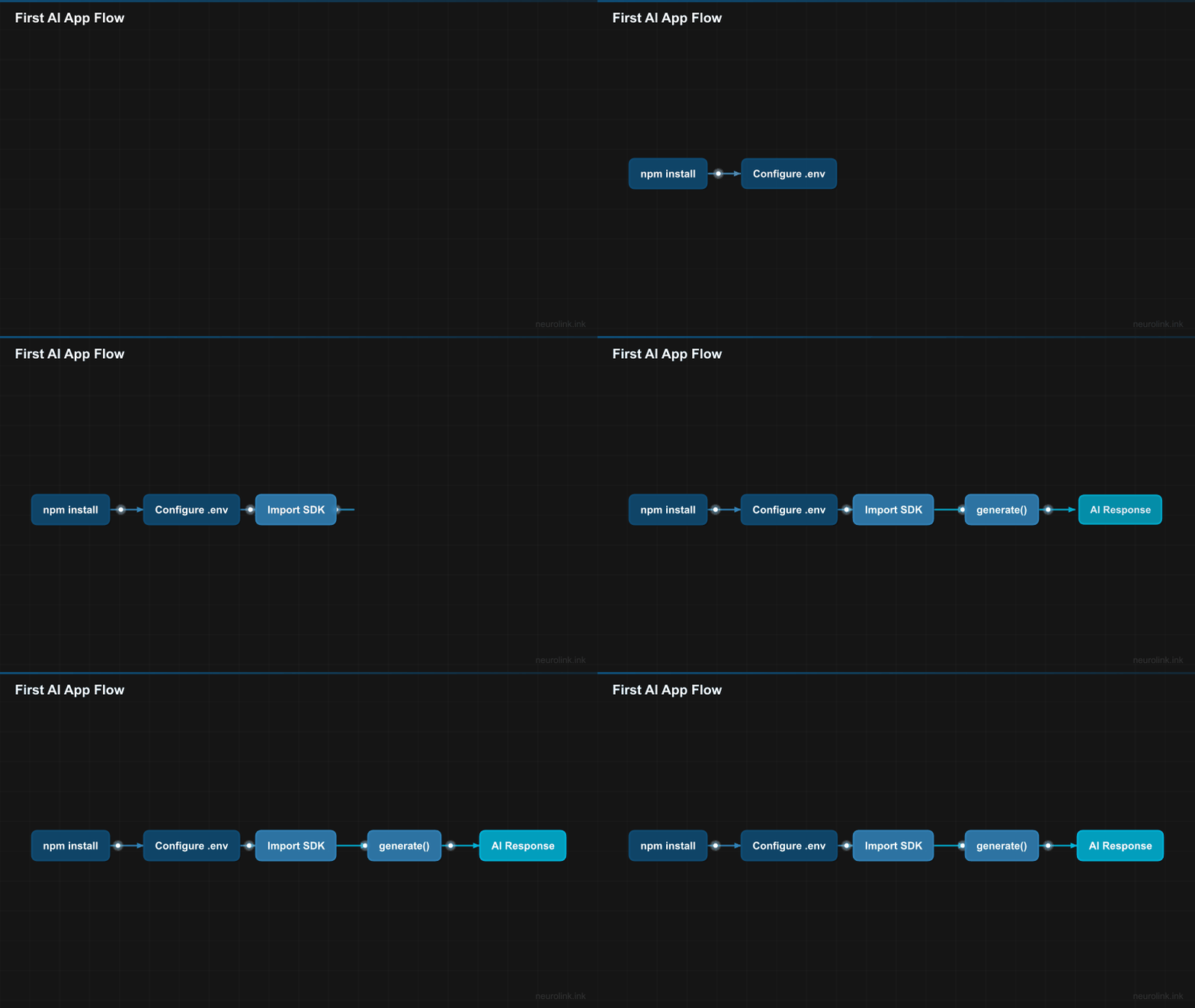
flowchart LR
    A["npm install<br/>@juspay/neurolink"] --> B["Configure<br/>.env API key"]
    B --> C["Import &<br/>Instantiate"]
    C --> D["Call<br/>generate()"]
    D --> E["AI Response"]
    style A fill:#0f4c75,stroke:#1b262c,color:#fff
    style B fill:#0f4c75,stroke:#1b262c,color:#fff
    style C fill:#3282b8,stroke:#1b262c,color:#fff
    style D fill:#3282b8,stroke:#1b262c,color:#fff
    style E fill:#00b4d8,stroke:#1b262c,color:#fff
Prerequisites
Before you begin, make sure you have the following:
- Node.js >= 20.18.1 – NeuroLink requires a modern Node.js runtime. Check your version with
node --version. - npm >= 10.0.0 or pnpm >= 8.0.0 – Either package manager works. This tutorial uses npm, but pnpm commands are identical.
- An API key from at least one supported provider – OpenAI, Anthropic, Google, AWS, or any of the 13 supported providers. If you do not have one yet, OpenAI and Google AI Studio both offer quick signup with free trial credits.
- Basic TypeScript/JavaScript knowledge – NeuroLink is TypeScript-native, but you can use it from plain JavaScript too.
Tip: Not sure which provider to pick? Think of it like choosing a phone carrier – they all do the same basic thing, just with different pricing. OpenAI (
gpt-4o) has the biggest community, while Google AI Studio (gemini-2.5-flash) lets you get started for free.
Installation
Step 1: Create a New Project
Start with a fresh directory and initialize a Node.js project configured for ES modules:
1
2
mkdir my-ai-app && cd my-ai-app
npm init -y
Update your package.json to enable ES module support:
1
2
3
4
5
6
7
{
  "name": "my-ai-app",
  "type": "module",
  "scripts": {
    "start": "npx tsx src/index.ts"
  }
}
Step 2: Install NeuroLink
Install the SDK with a single command:
1
npm install @juspay/neurolink
If you are using TypeScript (recommended), also install tsx for running TypeScript directly:
1
npm install -D tsx typescript
Step 3: Create a Minimal tsconfig.json
Create a tsconfig.json at the project root:
1
2
3
4
5
6
7
8
9
10
11
{
  "compilerOptions": {
    "target": "ES2022",
    "module": "ESNext",
    "moduleResolution": "bundler",
    "strict": true,
    "esModuleInterop": true,
    "outDir": "./dist"
  },
  "include": ["src/**/*"]
}
Step 4: Configure Your API Key
Create a .env file at the project root with your provider’s API key. NeuroLink auto-loads dotenv, so no additional configuration is needed:
1
2
3
4
5
6
7
8
9
10
OPENAI_API_KEY=sk-your-key-here

# For Anthropic
ANTHROPIC_API_KEY=sk-ant-your-key-here

# For Google AI Studio
GOOGLE_AI_API_KEY=your-google-key-here

# For Google Vertex AI
VERTEX_PROJECT_ID=your-gcp-project-id
You only need one provider key to get started. Add more later when you want to explore multi-provider features.
Warning: Your
.envfile contains secret API keys – treat it like a password. Never commit it to Git. Add.envto your.gitignorefile right away.
Your First Generate Call
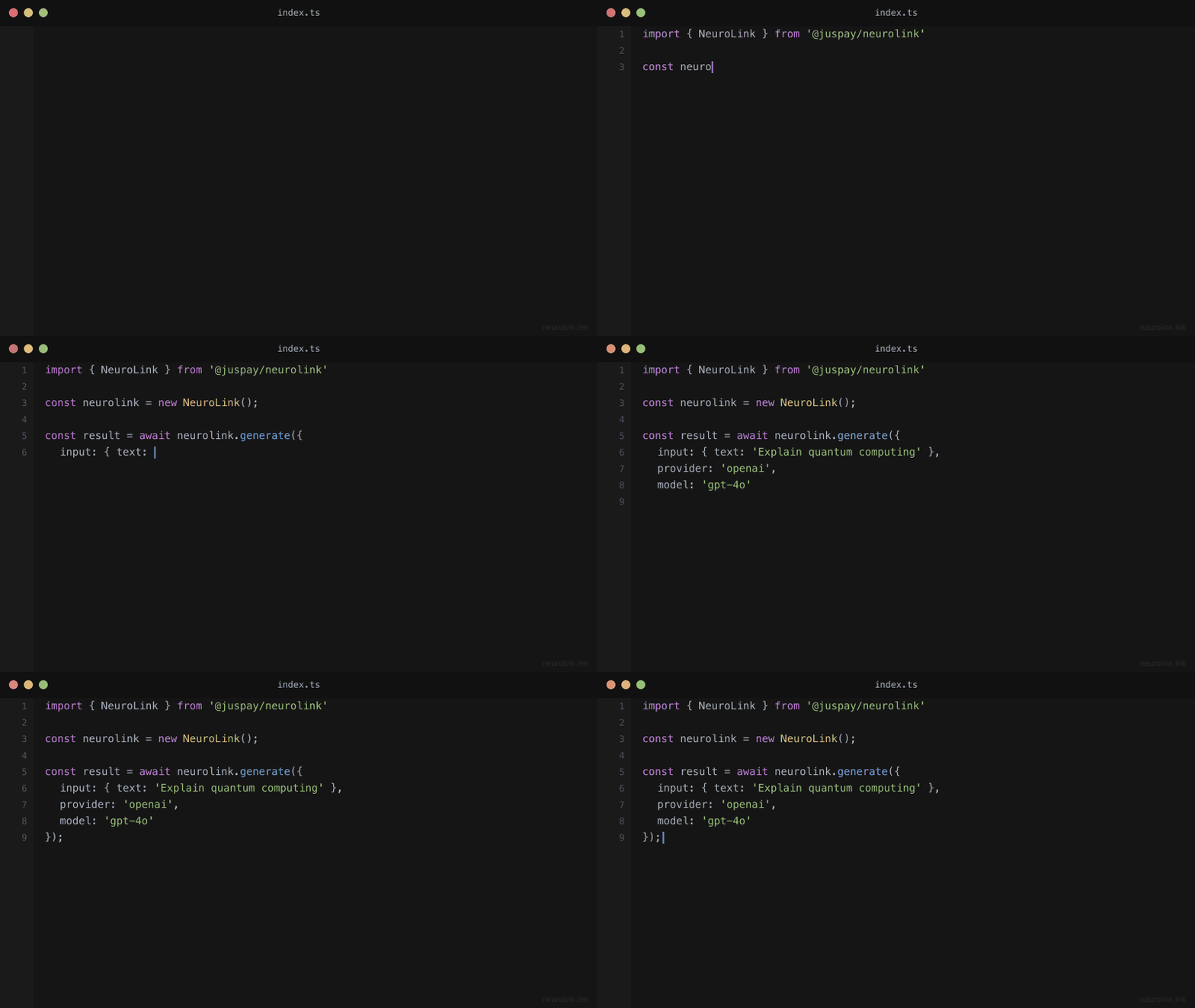
Create src/index.ts and write your first AI generation:
1
2
3
4
5
6
7
8
9
10
11
12
13
import { NeuroLink } from '@juspay/neurolink';

const neurolink = new NeuroLink();

const result = await neurolink.generate({
  input: { text: 'Explain quantum computing in simple terms' },
  provider: 'openai',
  model: 'gpt-4o'
});

console.log(result.content);
console.log(`Tokens used: ${result.usage?.total}`);
console.log(`Response time: ${result.responseTime}ms`);
Run it:
1
npm start
That is it. Five lines of meaningful code, and you have a working AI application.
Understanding the API
Let us break down what each part does.
GenerateOptions – the object you pass to generate():
| Field | Type | Description |
|---|---|---|
input.text | string | The prompt or question for the AI model |
provider | string | Which AI provider to use (e.g., 'openai', 'anthropic', 'vertex') |
model | string | The specific model to use (e.g., 'gpt-4o', 'claude-sonnet-4-5-20250929') |
temperature | number | Creativity control: 0 = deterministic, 1 = creative (optional) |
maxTokens | number | Maximum tokens in the response (optional) |
systemPrompt | string | Instructions that shape the AI’s behavior (optional) |
GenerateResult – the object you get back:
| Field | Type | Description |
|---|---|---|
content | string | The AI’s response text |
provider | string | Which provider was used |
model | string | Which model was used |
usage.total | number | Total tokens consumed |
usage.input | number | Tokens in the input prompt |
usage.output | number | Tokens in the output response |
responseTime | number | Time in milliseconds |
Note: Token usage fields use
total,input, andoutput– nottotalTokensorinputTokens. This is a deliberate normalization across providers.
Switching Providers in One Line
Here is the power of a unified SDK. The same code works with any provider – just change the provider and model strings:
1
2
3
4
5
6
7
8
9
10
11
12
13
14
15
16
17
18
19
20
21
22
23
24
25
26
27
28
29
30
31
import { NeuroLink } from '@juspay/neurolink';

const neurolink = new NeuroLink();

// OpenAI
const openaiResult = await neurolink.generate({
  input: { text: 'What is machine learning?' },
  provider: 'openai',
  model: 'gpt-4o'
});

// Anthropic Claude
const anthropicResult = await neurolink.generate({
  input: { text: 'What is machine learning?' },
  provider: 'anthropic',
  model: 'claude-sonnet-4-5-20250929'
});

// Google Vertex AI
const vertexResult = await neurolink.generate({
  input: { text: 'What is machine learning?' },
  provider: 'vertex',
  model: 'gemini-3-flash'
});

// AWS Bedrock
const bedrockResult = await neurolink.generate({
  input: { text: 'What is machine learning?' },
  provider: 'bedrock',
  model: 'anthropic.claude-3-sonnet-20240229-v1:0'
});
Note: Model names and IDs in code examples reflect versions available at time of writing. Model availability, naming conventions, and pricing change frequently. Always verify current model IDs with your provider’s documentation before deploying to production.
Every call returns the same GenerateResult type. Your application code that processes the response does not need to change at all.
flowchart TD
    A["neurolink.generate()"] --> B{"provider?"}
    B -->|"openai"| C["OpenAI GPT-4o"]
    B -->|"anthropic"| D["Claude Sonnet"]
    B -->|"vertex"| E["Gemini Flash"]
    B -->|"bedrock"| F["AWS Bedrock"]
    B -->|"ollama"| G["Local LLM"]
    C --> H["Same GenerateResult"]
    D --> H
    E --> H
    F --> H
    G --> H
    style A fill:#0f4c75,stroke:#1b262c,color:#fff
    style B fill:#3282b8,stroke:#1b262c,color:#fff
    style H fill:#00b4d8,stroke:#1b262c,color:#fff
Auto Provider Selection
If you do not want to hardcode a provider, createBestAIProvider() scans your environment variables and automatically selects the first available provider:
1
2
3
4
5
6
7
8
9
import { createBestAIProvider } from '@juspay/neurolink';

// Automatically uses the provider with a configured API key
const provider = await createBestAIProvider();
const result = await provider.generate({
  input: { text: 'What is machine learning?' }
});

console.log(result.content);
This is especially useful for libraries and shared modules where you do not want to assume which provider your user has configured.
All 13 Supported Providers
Here is the complete list of providers from the AIProviderName enum:
| Provider | Config Key | Environment Variable |
|---|---|---|
| OpenAI | openai | OPENAI_API_KEY |
| Anthropic | anthropic | ANTHROPIC_API_KEY |
| Google Vertex AI | vertex | VERTEX_PROJECT_ID |
| AWS Bedrock | bedrock | AWS credentials |
| Azure OpenAI | azure | AZURE_OPENAI_API_KEY |
| Google AI Studio | google-ai | GOOGLE_AI_API_KEY |
| Mistral | mistral | MISTRAL_API_KEY |
| Ollama | ollama | (local, no key needed) |
| LiteLLM | litellm | LITELLM_API_KEY |
| Hugging Face | huggingface | HUGGINGFACE_API_KEY |
| AWS SageMaker | sagemaker | AWS credentials |
| OpenRouter | openrouter | OPENROUTER_API_KEY |
| OpenAI-Compatible | openai-compatible | Configurable |
Adding Streaming
For chat interfaces and real-time applications, you want tokens to appear as they are generated rather than waiting for the complete response. Switch from generate() to stream():
1
2
3
4
5
6
7
8
9
10
11
12
13
14
15
16
17
import { NeuroLink } from '@juspay/neurolink';

const neurolink = new NeuroLink();

const result = await neurolink.stream({
  input: { text: 'Write a haiku about TypeScript' },
  provider: 'anthropic',
  model: 'claude-sonnet-4-5-20250929',
  systemPrompt: 'You are a creative poet.',
  temperature: 1.0
});

for await (const chunk of result.stream) {
  if ('content' in chunk) {
    process.stdout.write(chunk.content);
  }
}
The result.stream async iterator delivers text chunks as they arrive from the provider. This works identically across all 13 providers – NeuroLink normalizes the different streaming protocols (SSE, WebSocket, HTTP chunking) into a single consistent interface.
Note: The streaming property is
result.stream, notresult.textStream. This is consistent across all NeuroLink streaming operations.
Streaming in a Web Application
If you are building a web frontend, you can pipe the stream directly to a response:
1
2
3
4
5
6
7
8
9
10
11
12
13
14
15
// In an Express/Hono route handler
app.post('/chat', async (req, res) => {
  const neurolink = new NeuroLink();
  const result = await neurolink.stream({
    input: { text: req.body.message },
    provider: 'openai',
    model: 'gpt-4o'
  });

  res.setHeader('Content-Type', 'text/event-stream');
  for await (const chunk of result.stream) {
    res.write(`data: ${JSON.stringify({ text: chunk })}\n\n`);
  }
  res.end();
});
Adding a System Prompt
System prompts let you shape the AI’s behavior and personality. They work with both generate() and stream():
1
2
3
4
5
6
7
8
9
10
11
12
13
14
import { NeuroLink } from '@juspay/neurolink';

const neurolink = new NeuroLink();

// A helpful coding assistant
const result = await neurolink.generate({
  input: { text: 'How do I handle errors in async/await?' },
  provider: 'openai',
  model: 'gpt-4o',
  systemPrompt: 'You are a senior TypeScript developer. Provide concise, practical answers with code examples. Always mention edge cases.',
  temperature: 0.3  // Lower temperature for more deterministic, technical answers
});

console.log(result.content);
The temperature parameter controls the creativity of the output:
- 0.0 – Deterministic: always picks the most likely token. Best for factual queries, code generation, and classification.
- 0.5 – Balanced: a mix of reliability and variety. Good default for most applications.
- 1.0 – Creative: high variance in token selection. Best for creative writing, brainstorming, and poetry.
Provider Fallback
For production applications, you want resilience. If your primary provider has an outage, you need a fallback:
1
2
3
4
5
6
7
8
9
10
11
12
13
14
import { createAIProviderWithFallback } from '@juspay/neurolink';

const { primary, fallback } = await createAIProviderWithFallback(
  'openai',   // Primary provider
  'bedrock'   // Fallback provider
);

try {
  const result = await primary.generate({ input: { text: 'Hello!' } });
  console.log(result.content);
} catch (error) {
  const result = await fallback.generate({ input: { text: 'Hello!' } });
  console.log('Fallback:', result.content);
}
This pattern ensures your application stays available even when individual providers experience issues. You can configure as many fallback layers as you need.
What’s Next
Congratulations – you just built your first AI application! Let’s recap what you accomplished:
- Installed NeuroLink with
npm install @juspay/neurolink - Configured a provider API key in
.env - Generated your first AI response with
generate() - Switched providers by changing a single string
- Added streaming for real-time token delivery with
stream() - Customized behavior with system prompts and temperature
That was not so scary, right? Now you have a solid foundation to build on. Here are some fun next steps depending on what interests you:
- Want to build more things? Check out NeuroLink Quickstart: 10 Things You Can Build Today for ten copy-paste-ready projects
- Curious about tools? Connect your AI to external tools via MCP – see the MCP Tools Integration Guide
- Want to understand the big picture? Read What is NeuroLink? The Unified AI SDK Explained
- Ready for production? Deploy your AI app as an HTTP API – see From Zero to Production
Star the NeuroLink GitHub repository, join the discussions, and let us know what you build. The npm package is available now.
Related posts: